The Drop · October 26, 2026
Can I use video clips? Anime edits in an images only visualizer
No, and it is worth knowing that in the first ten seconds rather than after you have uploaded a song. Here is what the tool does instead, and how close that gets you to the edit you had in mind.
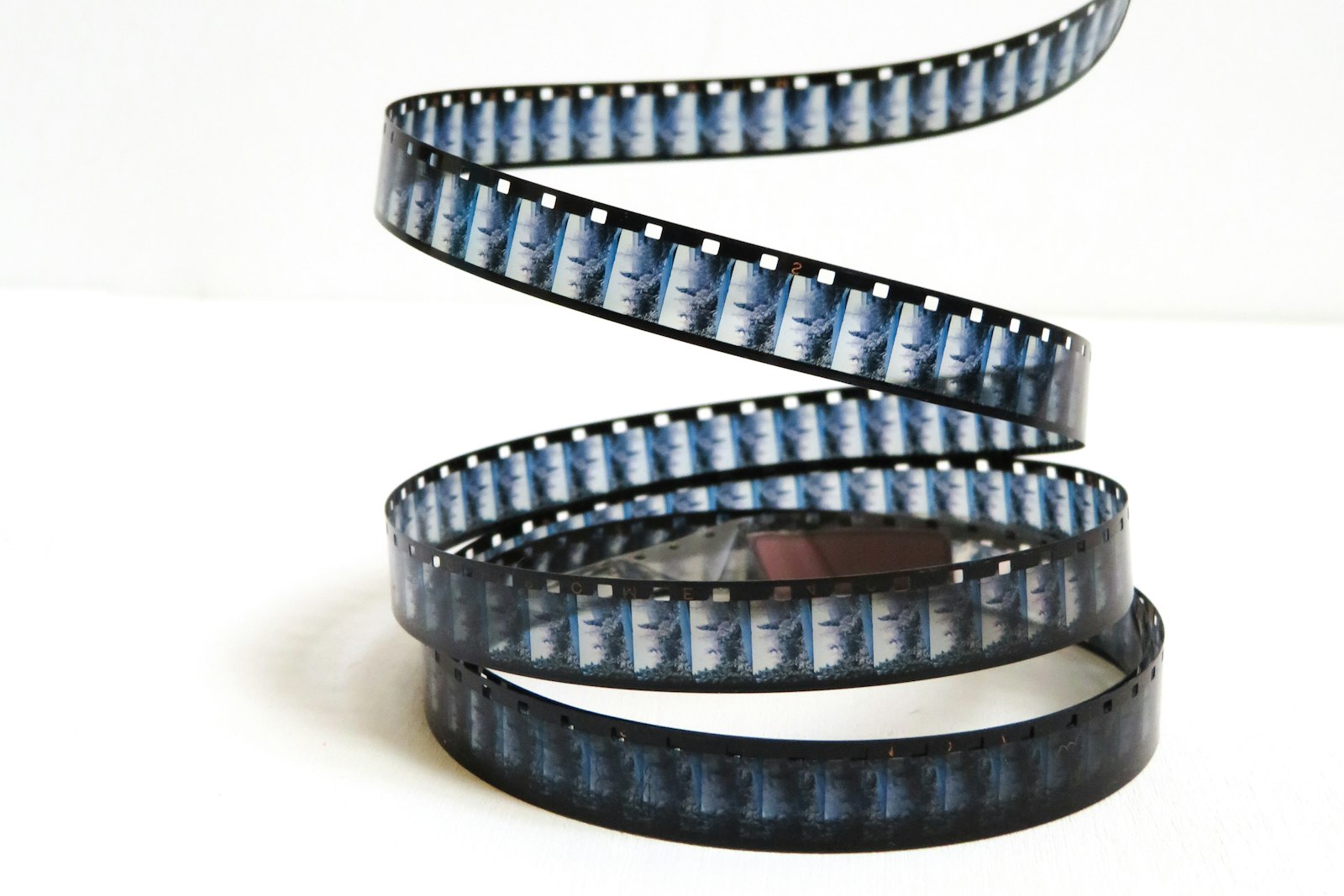
Photo via Unsplash
There is no video input in this app. The whole thing has two file pickers: one for
your track, set to audio/*, and one for pictures, set to image/*.
That is it. Drag an MP4 onto the image box and nothing happens, not even a complaint,
because the handler walks the dropped files and skips anything whose type does not start
with image/. No error, no status line, no thumbnail. So if you arrived
looking for an anime edit maker that cuts your clips to the beat, that part is not here
and no setting turns it on.
That is the honest headline. The rest of this is the part worth staying for, because a surprising amount of what makes a fast edit feel fast is not motion inside the shot.
A GIF is not the way around it
This is the first thing everyone tries, and the app will happily take it. A GIF is an image as far as the file picker is concerned, the thumbnail appears, and the thumbnail even animates, because a thumbnail is an ordinary image element sitting on the page. The render is a different story.
I tested it rather than guessed. A two frame GIF, red for half a second then blue for half a second, loaded exactly the way the app loads an image, then drawn to a canvas and sampled every 125 milliseconds for nearly three seconds. Twenty four samples, every one of them red. The thumbnail beside it was flipping between the two the whole time.
That is not a bug and not a browser quirk. It is in the HTML specification: when the source is an animated image, a canvas has to draw "the default image of the animation", or the first frame if the format does not define one. Every browser is required to behave that way, and the same goes for animated WebP and APNG. The paragraph immediately after it is the interesting one, because it says a canvas drawing from a video element gets the frame at the current playback position. That is precisely the thing this app would need and does not have.
What a fast edit is actually made of
Pull up any AMV or any phonk edit and slow it down. A lot of the time, the shot on screen is not moving much. What is moving is the cutting: a new image every eighth note, a face landing on the snare, a hard change on the drop. That part this app does do, and it does it off the drums rather than off a timeline.
Every image you load gets a role, and there are five: Any, Kick, Snare, Hi-hat and Bass drop. An image on Any goes into the normal rotation. An image on Kick is held on screen the moment a kick is detected, overriding whatever else was showing, for as long as your flash duration or 130 milliseconds, whichever is longer. The Bass drop role is the long one, held for the whole time the drop detector stays engaged rather than for a fixed count.
Everything else rides the detected tempo. The content grid changes the picture every four, two, one, half, quarter or eighth of a beat, so at 140 BPM the default quarter beat setting is a new frame every 107 milliseconds. That is around nine changes a second off your own stills, which is the rate a lot of edits actually run at. The trap visualizer post goes through the drum role setup in more detail, and it transfers directly to an anime edit.
Pulling stills out of footage you already have
If the footage exists, the frames exist. One ffmpeg line gets you an image pool out of a clip, and I ran these rather than copying them from somewhere:
ffmpeg -i clip.mp4 -vf fps=2 out_%03d.pngtakes two frames a second. On a four second 1280x720 test clip that was eight PNGs, each one at the source's own pixel size, 1.3 MB for the set.ffmpeg -i clip.mp4 -vf fps=1 -q:v 2 out_%03d.jpgis the version to actually use. Six frames out of a six second clip came to 176 KB total, against more than a megabyte for the same handful as PNG.ffmpeg -i clip.mp4 -vf "select='gt(scene,0.3)'" -vsync vfr out_%03d.jpggrabs one frame per cut instead of one per second. On a clip built from three shots it wrote two files, one at each cut, so the count you get back is cuts rather than shots.
Twenty to sixty stills is plenty. Load them, leave them all on Any except the few you want landing on a drum, push image chance up and empty the text box if you do not want words in it.
Where the random draw stops being an edit
Here is the limit nobody tells you about until you are an hour in. When the rotation picks an image it draws one at random from the pool, with replacement, every single time. It does not walk your list in order. With twelve pictures loaded you will see the same one again roughly every twelve changes, sometimes twice in a row, and you cannot stop that.
So a storyboard is out. You cannot say frame four on the drop and frame five after it. If order matters to your edit, this is the point where the tool stops being the right one. Text is the exception: typed lines cycle in the order you wrote them, one per content change, which is why the app works so well for lyrics and ad-libs and so poorly for a narrative sequence of shots.
The other missing control is placement. Every image is drawn outward from the middle of the frame, with a crop choice and nothing else. No position, no scale, no opacity, no two images at once.
When you should just open a video editor
Three cases, and none of them are close calls. Motion inside the shot, so a running character or a camera move. Any kind of sequencing, so a build that has to arrive in a set order. Anything needing two layers at once, like footage under a logo. DaVinci Resolve still ships a free version straight from Blackmagic, and all three of those are an afternoon in it. The honest scope piece on free music video makers covers where the browser tool sits against the paid options.
What this is good at is the other job: one track, a pile of stills, drums driving the cutting, and a 1080p file out the other end in the time it takes to play the song. If your source is anime you did not shoot, keep the usual caution in mind before uploading anywhere, which the YouTube post goes into. And if you push the flash rate up where these edits normally live, read the photosensitivity guide first, because a fast cut over a hard flash is genuinely a seizure risk for some viewers and a warning card costs you nothing.
Load your stills and hear what the drums do with them
Free, in the browser, no account and no watermark. Drop in a track, drop in a folder of frames, set one to Kick. New here? Start on the home page.
Open the visualizer