The Drop · August 14, 2026
Hyperpop visuals and rage edits: when the text is the effect
Most visualizer advice treats text as a label sitting on top of the video. In a rage edit it works the other way round. The words are the moving part, and the rest of the frame is just something for them to happen against.
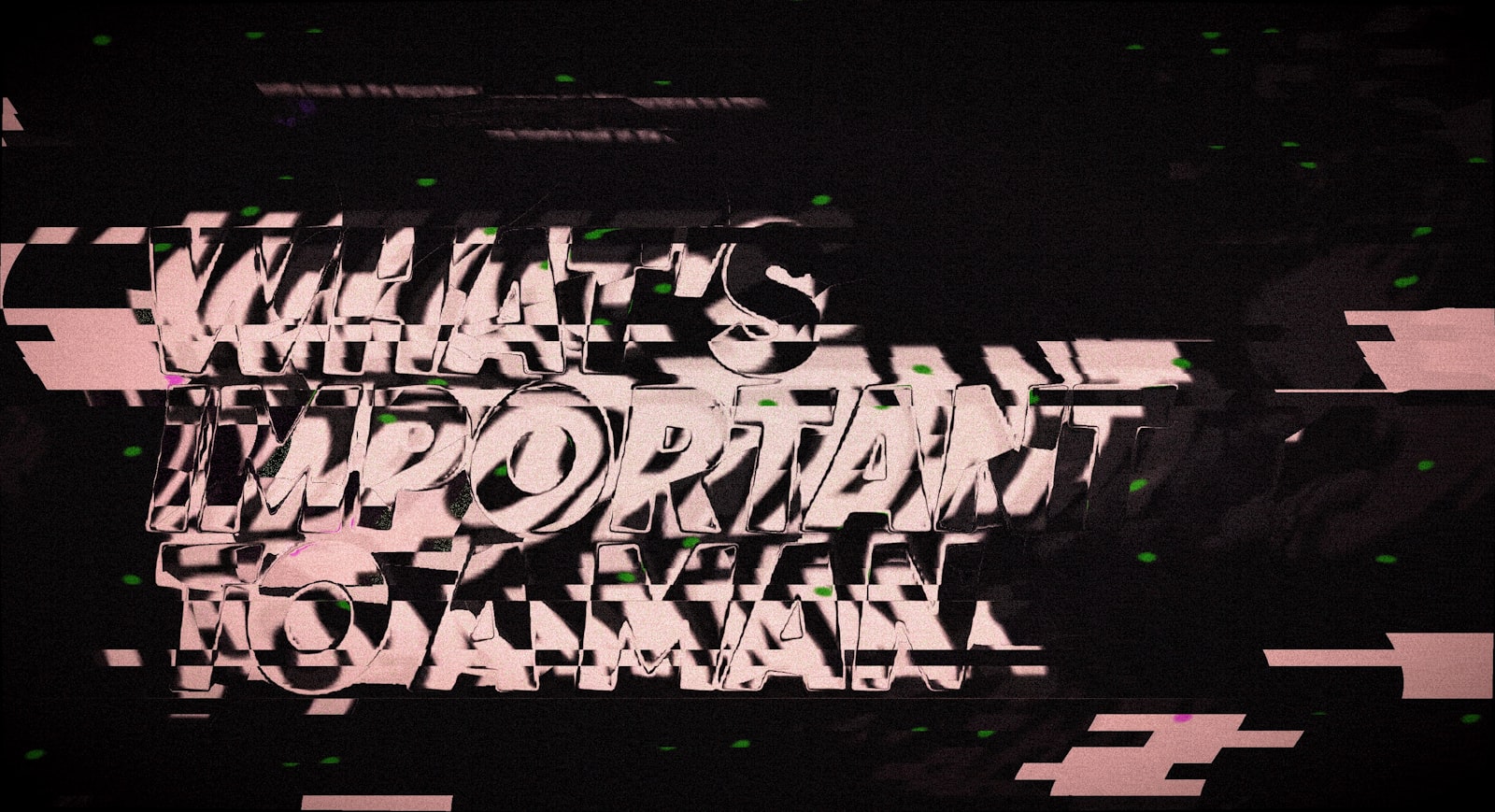
Photo via Unsplash
Hyperpop visuals and rage edits share one habit: the text never sits still long enough to be read as a sentence. A word lands, it is in a different typeface than the last one, it corrupts halfway through, and it is gone before your eye finishes it. You are not reading. You are getting hit with words.
That is a specific set of controls, and the bass drop detector is only one of them. The dubstep guide covers what the drop does to the whole frame. This one stays on the text layer.
Cut the font pool down first
The app carries 50 display faces and picks a new one every time the content changes. Leave all 50 ticked and you get soup: a blackletter word, then a comic face, then a slab.
Open the Fonts section, hit ALL OFF, then tick eight to twelve faces from the same corner of the list:
- Pixel and terminal: Press Start 2P, VT323, Silkscreen, DotGothic16
- Y2K techno: Orbitron, Audiowide, Michroma, Zen Dots, Faster One, Wallpoet
- Already broken: Rubik Glitch, Rubik Iso
- One heavy anchor: Anton or Archivo Black, so every few words something lands like a brick instead of a screensaver
The rotation is a shuffled deck rather than a random roll. The app deals out the faces you ticked, one per change, and only reshuffles once the deck is empty, so ten ticked fonts means each one shows up once every ten changes instead of the same face twice in a row. If you want the same set broken down by genre rather than by mood, the fonts guide goes through all 50.
One word per line
The font changes when the content changes, and the content advances one line at a time. So the line breaks in your text box decide how fast the typeface churns. Put one word on each line and every single word arrives in a new face. Put four words on a line and the phrase holds one face for its whole turn, which is much easier to read and much less deranged.
Two more things worth knowing before you write the lines:
- Text starts at 230px and shrinks only if the line runs wider than 90 percent of the frame. A one word line fills the screen. A seven word line comes out small and polite.
- Type in caps. Almost every face renders exactly what you type, with three exceptions: UnifrakturCook, Pirata One and Shrikhand are forced to title case because caps in a blackletter or script face are close to unreadable. Those are phonk fonts anyway.
Short repeated lines beat clever ones. Nobody reads a sentence at these speeds, but they will catch the same four words coming round for the fifth time.
What 1/8 beat actually means
Drop your track in and the app reads the tempo offline, then prints it next to the filename
as something like track.mp3 · 184.2s · 150 BPM. The content change
rate is set in beats against that number, and the fastest option is labelled "Every 1/8 beat
(unhinged)".
The arithmetic on that is 7.5 divided by your BPM, in seconds. At 150 BPM a change every 1/8 beat is a new word every 0.05 seconds, which is twenty words a second. The label is earned.
In practice, every 1/4 beat is the frantic setting you can actually watch, and 1/8 is something to spend on a clip rather than a whole track. It reads as a texture, not as words, which is right for the last eight bars of a beat and exhausting for three minutes.
The scramble is a drop detector setting
The character corruption in a rage edit is not a text effect in this app. It is wired to the bass drop detector, which ships at 0 and therefore off. Push it to somewhere around 40 to 60 and it starts working.
What happens then is specific. While sustained heavy bass holds, the app rewrites the word on screen: it swaps a random adjacent pair of characters and replaces some of the rest with symbols out of a set of brackets, slashes, math signs and digits. It re-rolls that every 45 milliseconds, so the word churns rather than sitting there as one static piece of corruption. The amount scales with how hard the bass is hitting, so a word half decays in a light section and goes completely unreadable at the peak.
The detector wants sustained energy, not a single hit. The bass has to stay up for about a third of a second before it engages, which is why one loud kick will not trip it, and why it feels like it belongs to the section rather than to the drum pattern.
Text flicker is the fastest thing in the app
The Text section has a flicker menu that is off by default: white strobe, black and white alternate, palette cycle, rainbow cycle, and blink, which just turns the text on and off. All five run on the frame clock rather than on the beat, one step roughly every 17 milliseconds, so a two state mode alternates about thirty times a second no matter what tempo your track is. Nothing else in the app moves that fast.
It looks like the hyperpop reference material, and it is also the control most likely to hurt somebody. WCAG success criterion 2.3.1 is blunt about the line: web pages should not contain anything that "flashes more than three times in any one second period" unless it stays under the general and red flash thresholds. Thirty alternations a second is ten times that. The red flash threshold matters here too, since it covers any pair of opposing transitions involving a saturated red, and both the palette cycle and the rainbow cycle run straight through saturated reds.
So treat it as a garnish. A short clip you post once, with a flashing warning in the caption and in the first seconds of the video, is a defensible use. A three minute upload, a looping stream backdrop or anything going on a screen at a venue is not. The strobe video guide has the full thresholds and what the platforms ask for. If you want the chaos without the risk, get it from the scramble and the font churn instead, both of which move at musical speed rather than at 60fps.
Palette, effect, render
Hyper is the palette for this: red, cyan, yellow, magenta and white, which is the standard hyperpop set. Acid gives you the green screen look if you want something colder.
For the flash effect, glitch slices or RGB split sit better under busy text than strobe does. Strobe inverts the word to black on a white frame at the moment of the hit, which fights the scramble for attention instead of feeding it.
Then hit RENDER and leave the tab in front, because a hidden tab stops drawing frames while the audio keeps going and you end up with a frozen video. What comes out is a 1080p WebM with the audio muxed in, which uploads to YouTube as it is. For everywhere else, the export guide has the one line conversion.
None of this needs After Effects, a template pack, or a subscription. The visualizer is free, runs in your browser, and never uploads your audio anywhere.
Make the text do the work
Free, in the browser, at 1080p. 50 fonts, a scramble wired to the bass, no watermark and no signup.
Open the visualizer