The Drop · July 6, 2026
How to promote a type beat with a visualizer video
A type beat lives or dies on YouTube, and on YouTube a beat is really a video. Buyers search "[artist] type beat," scroll a wall of near-identical results, and click the one that looks alive. A still image with a waveform painted across it does not look alive. A visualizer that moves with the beat does. Here is how to make that video for free in a browser tab and get it uploaded.
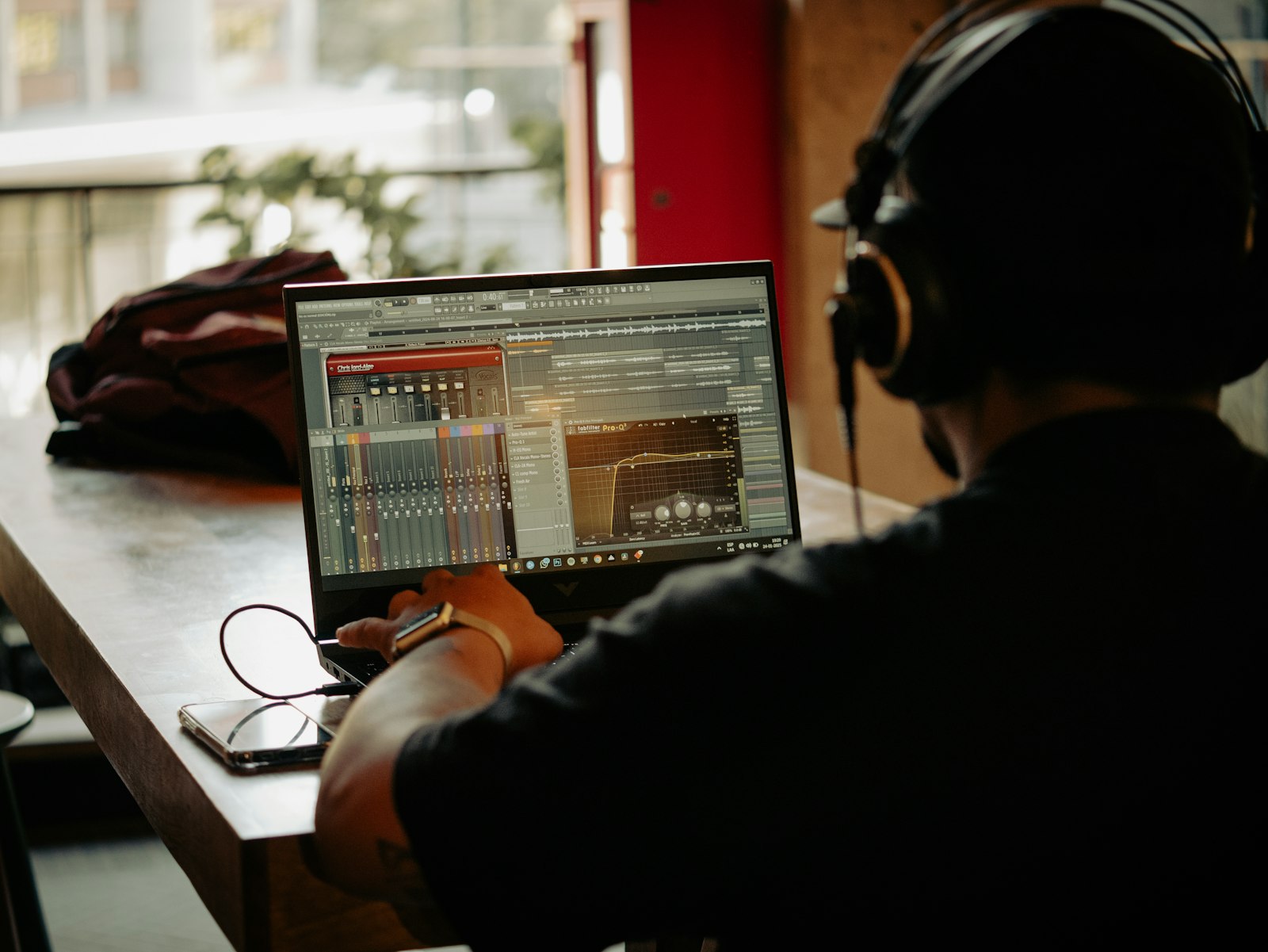
Photo via Unsplash
If you sell or lease beats, you already know the drill: the actual license usually closes on a storefront like BeatStars, but the discovery happens on YouTube search. Someone types a producer's name plus "type beat" and gets a page of thumbnails to choose from. Whether you think of yourself as making a video or not, you are uploading one, so the visual is your packaging. A flat JPG that never moves wastes the one moving-image slot the platform gives you.
Why a reactive visualizer beats a static image
Picture two producers posting a beat of the same quality. One runs a static cover for three minutes. The other pulses, cuts and flashes on the beat the whole way through. The second one reads as effort, and more usefully it holds eyes on the screen longer, and watch time is one of the few ranking signals you actually control. A type beat visualizer turns the beat itself into the motion, so the thing you are selling is doing the selling. You are not paying an editor and you are not dropping a stock loop behind it that has nothing to do with the track.
Build the type beat video in the browser
Open the app and load your beat as an mp3 or wav. The visualizer reads the beat and the tempo, then flashes and cuts the screen in time with it. For a type beat you want the name on screen, so put your producer tag and the beat title in the text box and let them ride the cuts. Pick a font or two and a palette that match the mood, dark and heavy for a trap beat, brighter for something melodic. If you have cover art or a logo you own the rights to, upload it and set it to fire on the kick so it hits on the low end; that per-drum trigger is the same one the trap visualizer guide walks through in detail. Prefer no words at all? Empty the text box and you get a clean shapes or pure-strobe backdrop instead.
When it looks right, hit render. You get a 1920 by 1080 60fps WebM with the audio muxed in, no watermark. One thing to know: the app records the canvas in real time while the track plays, so keep that tab focused and awake until it finishes, or a backgrounded tab will drop frames. If your beat has a real build and drop, the build and drop guide covers how to make the visuals climb with the energy instead of firing flat the whole way through.
Name it the way buyers actually search
The type beat naming convention is simple: the instrumental is named after the artist it would
suit, like a "Drake type beat" or a "Central Cee type beat." Put that in the YouTube title with the
year, the mood and the genre, in the order a buyer would type it. A common shape is
(FREE) Drake Type Beat 2026 | Dark Melodic Trap Instrumental. YouTube caps titles at
100 characters and shows only about the first 60 in search before it trims the rest, so front-load
the artist name and the words "type beat," then let the extra descriptors trail off the end where a
cut-off does no harm. The on-screen text in the video and the thumbnail should echo that same name,
so a scroller recognizes the beat in a single glance.
Upload the WebM, no conversion needed
Here is the part that trips people up with a browser-made file: you do not have to convert it
first. YouTube accepts WebM uploads directly. It sits on Google's own supported-formats list right
next to mov and mp4, so the file the app hands you goes straight up. You only need a conversion step
if some other storefront rejects WebM on upload, and even then it is one line:
ffmpeg -i in.webm -c:v libx264 -crf 18 out.mp4. Make your thumbnail as a separate
still image with the title big and legible, since YouTube wants a dedicated thumbnail rather than a
grabbed frame, and a readable name on the thumbnail is half the click.
Cut it down for Shorts, Reels and TikTok
The full upload is not the whole campaign. Take the loudest eight to fifteen seconds, usually the drop, and post it vertically as a Short, a Reel and a TikTok that point back to the full beat. The reactive visuals already look at home in those feeds because they move, which is exactly what a static beat cover cannot do. Re-render a short section or trim the WebM down; either way the beat is doing the work and you are just handing the algorithm more surface area to find it.
Keep the flashing safe for a public upload
This is strobe content, and the second it is public it reaches an audience you cannot screen. Fast flashing light can trigger a seizure in someone with photosensitive epilepsy, and the widely used accessibility guidance is to keep full-screen flashing to no more than three flashes a second. For a video that plays start to finish, that is easy to respect: turn the persistent flicker down or off, let the slower beat cuts carry the motion, and if a particular beat leans hard on strobe, drop a plain warning line in the description. A safe video still hits; you do not need a seizure risk to make a beat look loud.
Make your type beat video
Free, in the browser, exports a 1080p WebM that uploads straight to YouTube.
Open the visualizer