The Drop · August 12, 2026
Make a Spotify Canvas: a 3 to 8 second loop that does not jump
Nobody watches a Canvas once. It runs under your track for the whole song, so a listener sees your last frame meet your first frame forty or fifty times before the outro. Everything about building one comes back to that join.
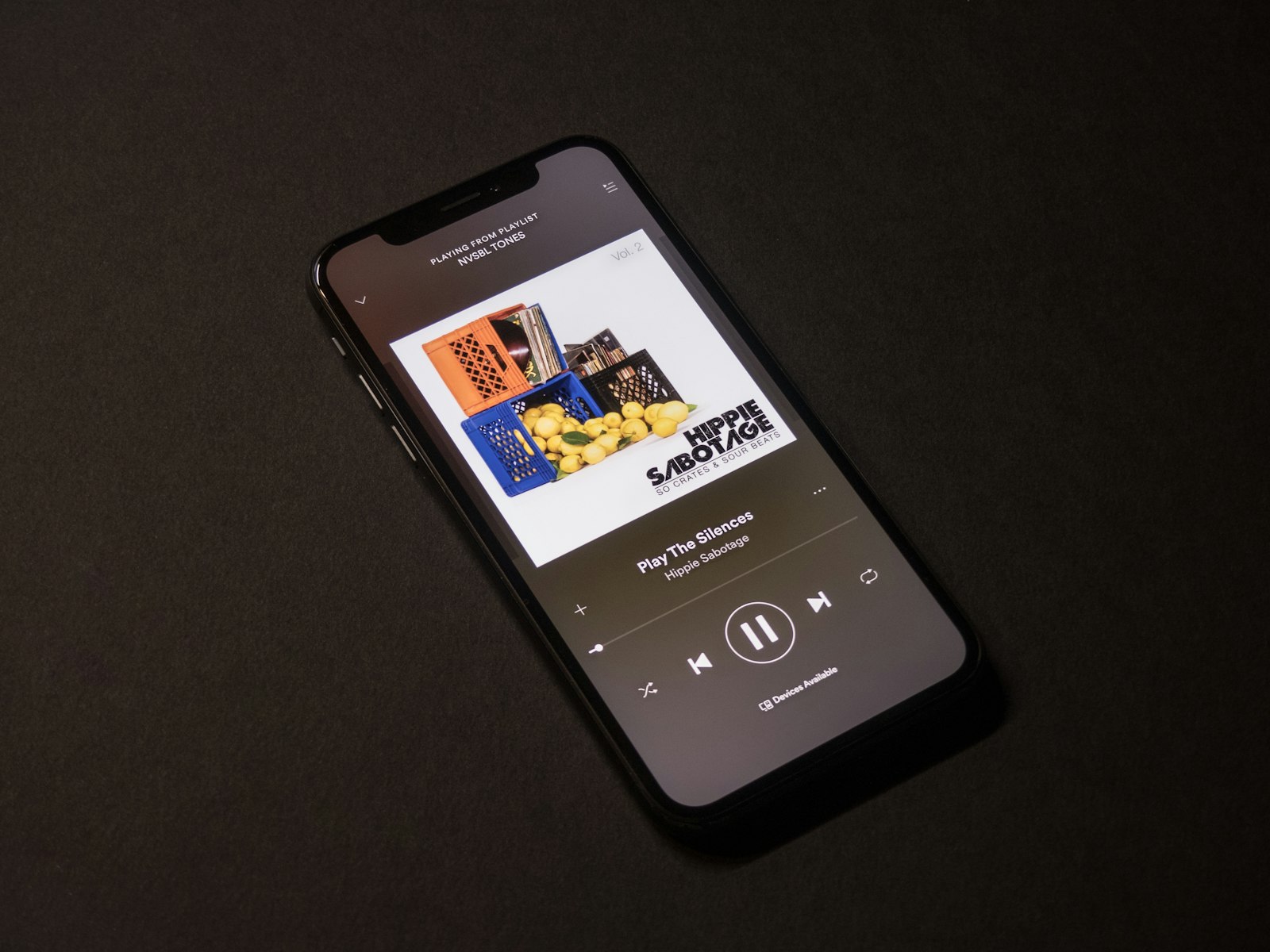
Photo via Unsplash
Spotify describes a Canvas as a short looping visual you add to each of your tracks, and it is open to all artists now rather than a label perk. It is also small enough to cut out of a visualizer render in about ten minutes.
What Spotify actually asks for
The guidelines on Spotify for Artists are short. A Canvas is 3 to 8 seconds long, in a vertical 9:16 ratio, between 720px and 1080px tall, delivered as an MP4 or a JPG. The JPG is the still option, so anything with motion in it is an MP4.
That format line is the first thing to plan around, because this app records to WebM. YouTube will take a WebM upload exactly as it comes out of the browser. Spotify will not, so the conversion step is mandatory here rather than optional. The export guide covers the general case.
Spotify also names three ways a Canvas can loop: a continuous loop with a seamless join, a hard cut with clear edit points, and a rebound that plays the clip forwards and then reverses it. That third one is a gift and most people skip past it.
The length is really a bar count
3 to 8 seconds reads like a free choice. It is not. For a loop to land, the clip has to be a whole number of bars, otherwise the flash pattern restarts early or late on every single repeat and the eye catches it immediately.
When your audio loads, the app reads the tempo offline and prints it next to the filename,
something like track.mp3 · 212.4s · 128 BPM. One bar of 4/4 is 240
divided by that number, in seconds. Run it against the window:
- One bar fits between roughly 60 and 80 BPM. At 72 BPM a bar is 3.33 seconds.
- Two bars fits from 80 up to 160 BPM. At 128 that is 3.75 seconds.
- Four bars fits from 120 BPM upward. At 128 that is 7.5 seconds, at 174 it is 5.52.
Between 120 and 160 you get a choice of both, and the longer one is usually better because a repeat every 7.5 seconds is less obvious than one every 3.75.
One caution on the printed number. When the offline scan lands under 95 BPM and the double time reading also scores well, it doubles on purpose, which is right almost everywhere and wrong for slow beats. If the app says 152 for something you know is 76, halve it before you do any of this arithmetic.
Turn the flashing down, because Spotify asks you to
The same guidelines tell you to avoid rapid video cuts or intense flashing graphics. This app ships on a quarter beat change rate with a 15 Hz flicker at 40 percent opacity, which is a fairly precise description of the thing they are asking you not to send. Four changes:
- Flicker opacity to 0. That kills the clock driven strobe layer entirely.
- Content change rate to every 2 beats, or every 4 for something calmer. Two bars at 128 BPM with a change every 2 beats still gives you four distinct looks in 3.75 seconds.
- Flash duration up from the 180 ms default toward 500 ms, so a hit decays as a fade instead of a jump.
- Zoom punch as the effect. Strobe, invert and glitch slices are all built to jar, which is fine in a 30 second edit and punishing on the fiftieth repeat.
Treat that as an accessibility floor, not a style preference. WCAG success criterion 2.3.1 draws the line at content flashing more than three times in a second, and a Canvas multiplies whatever you ship by the length of the track. The thresholds and where they come from are laid out in the strobe video guide.
The crop is the composition
The app renders 1920 by 1080 landscape. A Canvas is vertical, so roughly two thirds of the frame width is going away and whatever was living out there goes with it. Keep text lines short and the movement centered. The vertical composition post works through what survives a 9:16 crop and what thins out, and all of it applies here on a much shorter clip.
Cropping full height out of a 1080 tall render leaves you at 1080 tall, which is the top of Spotify's stated range with no upscaling involved.
Two commands
Record in RENDER mode with the tab focused, since a hidden tab stops drawing frames while the audio keeps playing. Then slice the loop out of the WebM:
ffmpeg -i render.webm -ss 42 -t 7.5 -vf "crop=608:1080,scale=1080:1920" -an -c:v libx264 -crf 18 -pix_fmt yuv420p canvas.mp4
-ss is your start point in seconds and -t is the length, 7.5 for
four bars at 128 BPM. -an drops the audio, because your track is what the listener
hears. Re-encoding rather than copying the stream means the cut lands on the frame you asked
for instead of the nearest keyframe, which matters a lot when the whole clip is seven seconds.
The scale lands at exactly 9:16.
Then the rebound, if your join is not clean. Cut half the length you want, because this doubles it:
ffmpeg -i canvas.mp4 -filter_complex "[0:v]split[a][b];[b]reverse[r];[a][r]concat=n=2:v=1[out]" -map "[out]" -an -c:v libx264 -crf 18 -pix_fmt yuv420p rebound.mp4
A 3.75 second clip comes out at 7.5. The join is perfect by construction, since the last frame is the first frame. The cost is that the middle of it visibly runs backwards, which reads as deliberate on shapes and abstract motion and reads as broken on anything with text or a face in it. If you would rather earn a clean seam than fake one, the VJ loops post goes deep on cutting between flashes and matching brightness at both ends.
What not to put on screen
Spotify's Canvas content policy is stricter than the average feed, and it is worth reading before you spend an afternoon on something that gets pulled. No links or URLs, no ticket vendors, nothing asking for follows or likes, no promoting other songs or unrelated albums, no brands or products including Spotify's own logo, and no contests or sweepstakes. Any text you do use has to be relevant to the track it sits under. Profanity, written or illustrated, means the Canvas has to be marked explicit, and so do drug, violence and sexual references.
The guidelines separately suggest leaving out your song title and artist name, since the app already prints both over the top of the Canvas, and avoiding footage of talking, singing or rapping, which never lines up with the audio properly.
For this app that mostly means the text box. Leave it empty and you get shapes only, one image, or a pure strobe frame; there is no fallback text waiting to appear. Cover art on a hit with a few shapes between hits is a Canvas that clears the policy without you thinking about it.
Watch it fifty times before you upload
Loop the finished MP4 in any player on repeat for two full minutes. That is the honest test, and it is the one that catches everything: the beat arriving a frame early, a shape that the eye starts tracking across the join, a brightness step at the restart.
Then upload it in Spotify for Artists under the track. The visualizer is free, runs in the browser, never uploads your audio anywhere, and a Canvas is about seven seconds of what it makes.
Cut your Canvas loop
Free, in the browser, at 1080p. No watermark, no signup, and a render you can trim to any length you want.
Open the visualizer