The Drop · June 28, 2026
DJ set visuals on zero budget: looping clips for the booth screen
The screen above your booth does not need a VJ rig or a monthly software bill to look good. You can render a reactive visual loop in your browser at home, drop it on a USB stick, and let it run behind you all night. Here is how to put together DJ visuals that loop cleanly for nothing.
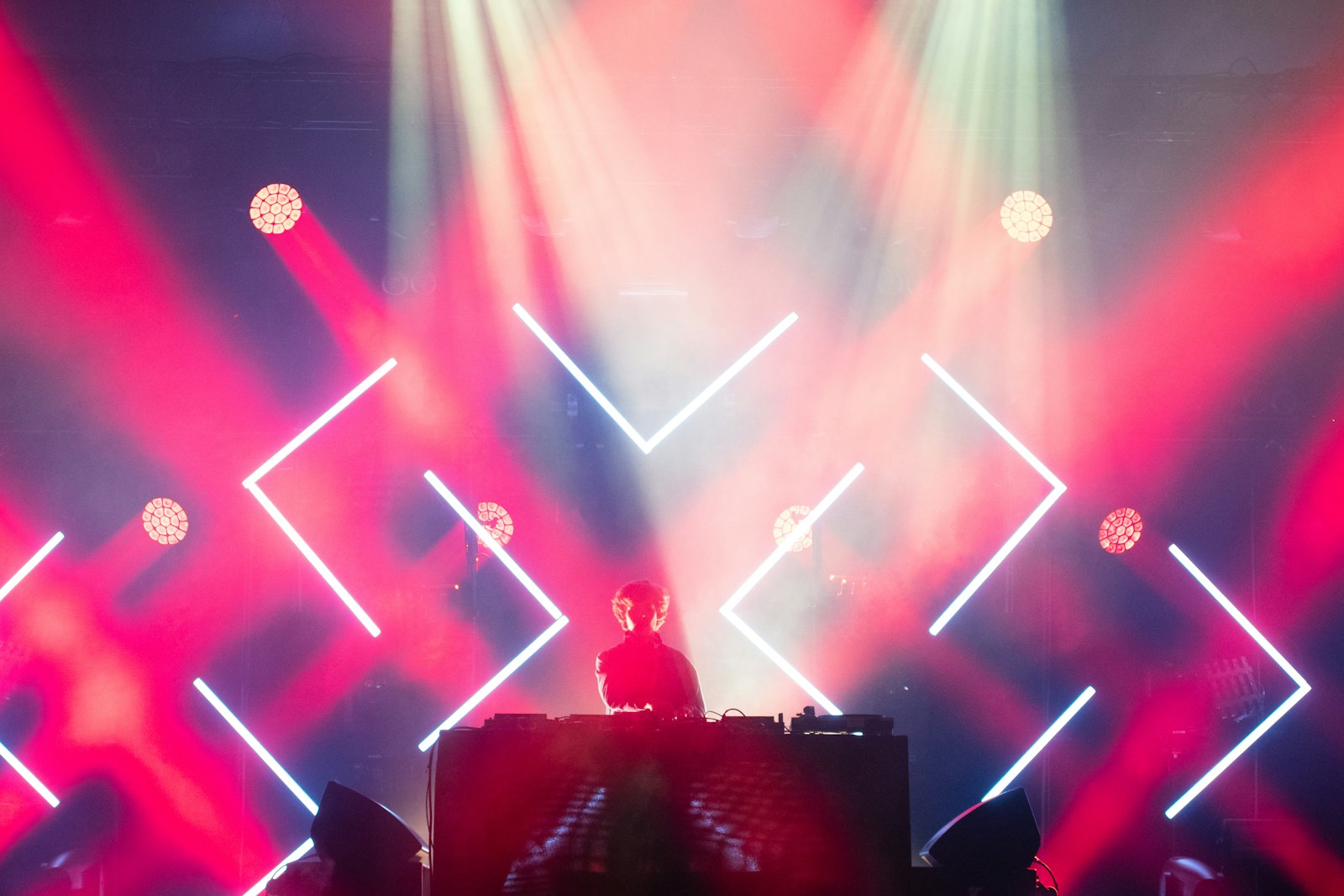
Photo via Unsplash
The usual way to get moving visuals behind a set is VJ software like Resolume or Serato Video, where you trigger video clips live and map them to the screen. That works, but it costs money and it is one more thing to learn and babysit during a gig. If all you want is a screen that moves with the music while you focus on the mix, you do not need any of it. You need one good loop and a player that repeats it.
Render the loop at home, do not run it live
The visualizer records the canvas in real time while your track plays, so the tab has to stay focused and the machine has to keep up while it captures. That is fine on your own desk. It is not something you want standing between you and a packed floor. So you build the clip ahead of the night and play the finished file on a loop at the booth. The export is a 1920x1080 60fps WebM with the audio already muxed in, which is a clean handoff to any screen.
One honest point before you build anything. A rendered loop is locked to the track you fed it, not to whatever you are mixing on the night, so it will not beat match your live set. For a booth backdrop that is exactly what you want anyway: motion and color that carry energy, not a screen trying and failing to chase your blends. If you do want visuals that react to the room in the moment, that is a different setup, and the live performance visualizer guide gets into why running live off a browser tab is a bad bet.
Make a clip that loops without a seam
A VJ loop is short, usually four to sixteen seconds, built so the end runs back into the start with no visible cut. You can get a clean repeat out of a longer render too if you pick the right section. Feed the app a stretch of a track with steady energy and no big intro or breakdown, so the first frame and the last frame sit at a similar brightness. When the player jumps back to the top, the join barely registers.
Looping the file is the easy part and it is where you skip the paid software. VLC repeats a single file with the loop button. OBS has a loop checkbox on a media source. Most smart TVs and media players will repeat a single file off a USB stick. Pick whatever already drives the screen at the venue and point it at your clip.
Lose the words, keep the motion
A booth screen is a backdrop, not a lyric video, so leave the text box empty. With no text the app runs images only, shapes only, or pure strobe on black. The shapes mode draws checkerboards, circles, rings, stripes, triangles and dot grids on the beat, which reads as clean abstract motion rather than someone's song words floating over a crowd. Drop in your logo or your handle as an image and it flashes in with everything else, so the screen carries your brand without a single line of lyrics. Assign that logo to the kick if you want it punching in on the low end instead of at random.
Fit it to the screen you actually have
Booth and club screens come in odd shapes: a wide LED strip, a grid of square tiles, a TV turned on its side. The export is a standard 1920x1080, so let the player do the fitting. VLC and OBS both crop or stretch a clip to whatever surface you give them. If the wall is a long way from 16:9, render a busier shapes look so a hard crop never lands on a patch of dead black. Test the fit on the real screen before doors if you can, because an ultrawide strip can swallow the middle of a 16:9 clip and leave the good part off the edges.
How hard it flashes is a safety call
A loud strobe is one thing on your laptop and another on a bright screen hanging over a packed floor. Flashing light can trigger a seizure in someone with photosensitive epilepsy, so this is not a setting to max out and forget. The widely used rule, from the W3C accessibility guidelines, is that content should flash no more than three times in any one second, and saturated red is held to a stricter test because people react more strongly to red flashing. The app's persistent flicker runs from 2 Hz up to 30 Hz, which lands right in the range you want to avoid for an audience, so keep that one low or off for a public screen and let the beat cuts, the color and the shapes carry the energy. The flickering visualizer guide breaks down each flicker control, and the same caution runs through the concert visuals guide where a backdrop fills a whole room. If the venue does not already post a flash warning, put one up.
Render, loop, done
Build the look in the app, render the WebM, copy it to whatever drives
the booth screen, and set the player to loop. If that player will not take WebM, one command
turns it into an MP4: ffmpeg -i loop.webm -c:v libx264 -crf 18 loop.mp4. After that
it just runs, and you get to stand at the decks instead of clicking through clips all night.
Build your booth loop
Free, browser-based, and your track never leaves your machine.
Open the visualizer